Handbook · Interface & gestures
start hereInterface
Kreyon keeps the canvas as open as possible. File and page controls sit along the top, the tools you use mid-stroke live on the side rail, and colour and canvas tools float on dials you can move anywhere.
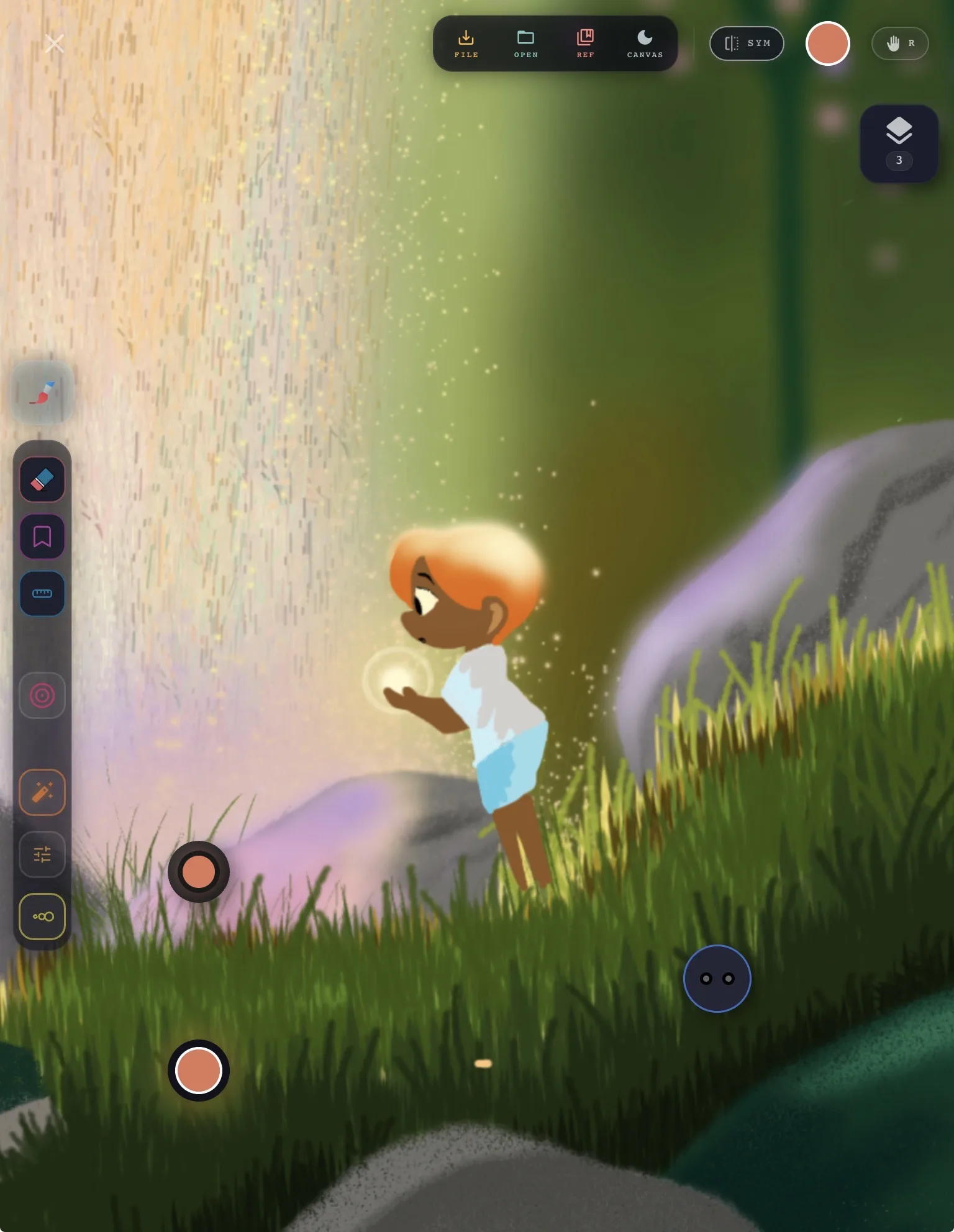
Tap a number to jump to what it does.
Top bar
Everything about the file and the page lives along the top edge, well away from where you draw.
- 1
Close
Leaves the canvas and returns to your project library.
- 2
File
Save and export. Share your artwork as a PNG or JPG, or save the full project file with every layer intact.
- 3
Open
Bring something in: open a Kreyon project file, or import a photo or image onto the canvas.
- 4
Ref
Opens a floating reference card so you can keep an image in view while you draw, without it becoming part of the painting.
- 5
Canvas
Switches the plain canvas between Kreyon’s dark navy and white. When a paper texture is on, the paper sets the colour instead — set Paper to None to change it.
- 6
Symmetry
Turns on mirrored drawing. While it is on, the button shows the active mode — for example horizontal, vertical, or a radial fold.
- 7
Colour
Your current colour. Tap for the colour wheel, double-tap for your palette, and drag the dot onto the canvas to fill an area with that colour.
- 8
Handedness
Swaps the tool rail and dials between right-handed (R) and left-handed (L) layouts, so controls always sit under your free hand. Kreyon remembers your choice.
Layers
The layer stack has its own button in the top-right corner.
- 9
Layers
Opens the layer panel. The number shows how many layers the artwork has. Add, reorder, merge and adjust layers from the panel — see the Gestures page for the layer shortcuts.
Tool rail
The rail on the side of the screen holds the tools you reach for mid-stroke. It follows your handedness setting.
- 10
Brushes
Opens your brush shelf — built-in brushes, packs you have imported and brushes you made in the Brush Maker.
- 11
Eraser
Switches to the eraser. Tap again to go back to your brush. When the eraser is on, an eraser pod appears on the canvas so you can pick its texture.
- 12
Bookmark
Tap to bookmark the drawing as it is right now. Long-press to step back through your bookmarks and compare earlier stages of the piece.
- 13
Scales
Shows drawing scales — rulers you can place on the canvas and draw against for straight lines and measured guides.
- 14
Size & opacity
Opens the size and opacity arcs around the button. Slide along an arc to change the brush without covering the canvas.
- 15
SelectionStudio
Starts a selection — draw around an area to select it, then move, transform, adjust or paint only inside it.
- 16
Guides
Opens drawing guides: a posable figure guide for construction and a light guide for working out where shadows fall.
- 17
Recent brushes
A pod holding the last few brushes you drew with. Open it and drag toward a brush to switch back to it instantly.
The dials
Kreyon’s dials float on the canvas. Drag any dial to park it wherever suits your hand, and tap it to open it.
- 18
Palette dial
Your saved colours in a ring. Open it and pick a swatch, or add your current colour to a slot.
- 19
Colour dial
A colour wheel within reach of your thumb. Open it to pick a new colour without leaving the canvas.
- 20
Command dial
The dial with the two eyes. Tap it to open a ring of eight tools: Guides, Blend, Brush size, Retouch, Paper, Text, Ink pen and Fill.
Slide to a notch to pick a tool, adjust it on the ring, then tap the centre to confirm and close the dial.