Handbook · Interface & gestures
faster than any buttonGestures
Kreyon keeps its most-used commands in your fingers. Your pen (or one finger, if you draw with it) paints; extra fingers navigate, undo and redo.
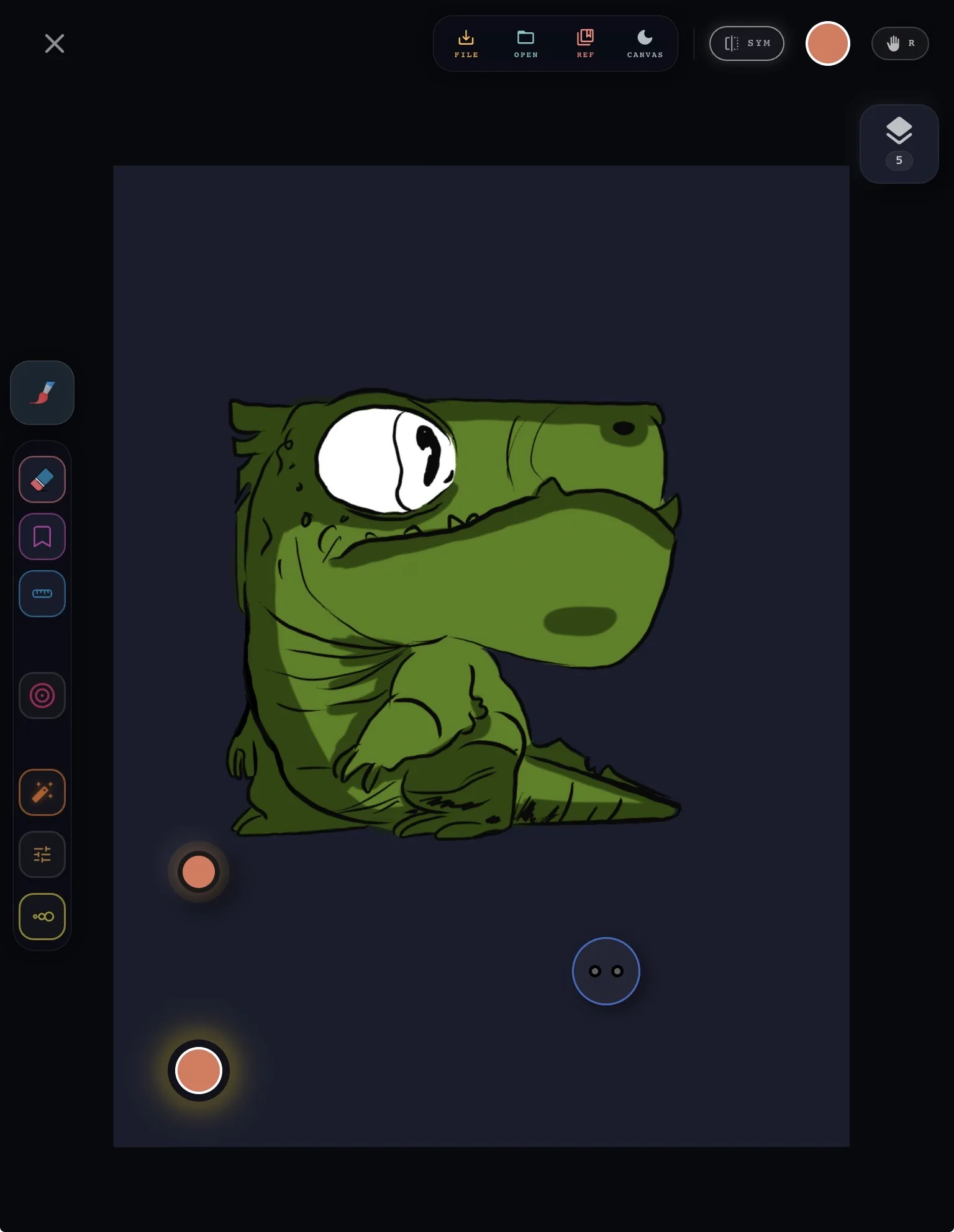
Circles show where fingers touch. Tap one to jump to it.
Move around the canvas
Two fingers always move the canvas, never your drawing.
Zoom
Pinch two fingers apart to zoom in, together to zoom out.
Rotate
Twist two fingers on the canvas to turn it to a comfortable angle.
Move
Drag with two fingers to slide the canvas around.
Fit to screen
Pinch three fingers together quickly to snap the canvas back to its starting view.
Undo & redo
Undo and redo have no buttons — they are always under your fingers.
Undo
Tap the canvas with two fingers to undo your last action.
Redo
Tap with three fingers to bring it back.
Keep undoing
Hold two fingers still to step back repeatedly, or three to step forward. Let go when you reach the moment you want.
On by default when you draw with a finger. With a pen, turn it on in gesture settings — there a two-finger hold is Shape lock.
Prefer the old way?
Kreyon can use a two-finger double tap for undo and a three-finger double tap for redo instead. Switch it in gesture settings.
While you draw
Shortcuts that work alongside the brush.
Shape lock
Rest two fingers still on the canvas, then draw with your pen — the stroke snaps to a clean line, circle or rectangle as you draw.
Drew the shape first? Plant two fingers before you lift the pen and it snaps the same way.
Pick a colour
Double-tap the canvas with one finger to open the colour picker over your artwork, then choose the colour you want.
Drawing with your finger on a phone? Long-press the colour dot at the top instead.
Finger eraser
When you draw with a pen, rest a finger still on the canvas for a moment — it turns into an eraser. Rub to erase.
While it is erasing, slide a second finger up or down to make the eraser bigger or smaller.
In the layer panel
Open the panel with the Layers button, then use these on the layer cards.
Reorder
Touch and hold a layer, then drag it up or down. A line shows where it will land; the list scrolls when you hold near the top or bottom.
Merge two layers
Hold one finger on each of two layers. After a moment they lift out beside the panel — pull your fingers together and they merge into one.
Change your mind? Lift your fingers before they meet and both layers slide back untouched.
Flatten a group
Pinch quickly across several layers to flatten everything between your fingers into a single layer.